Article in English
A clearer way to adjust your event schedule
See how a delay affects the rest of your event before you apply it. Keep every remaining segment, or absorb time into an eligible break.
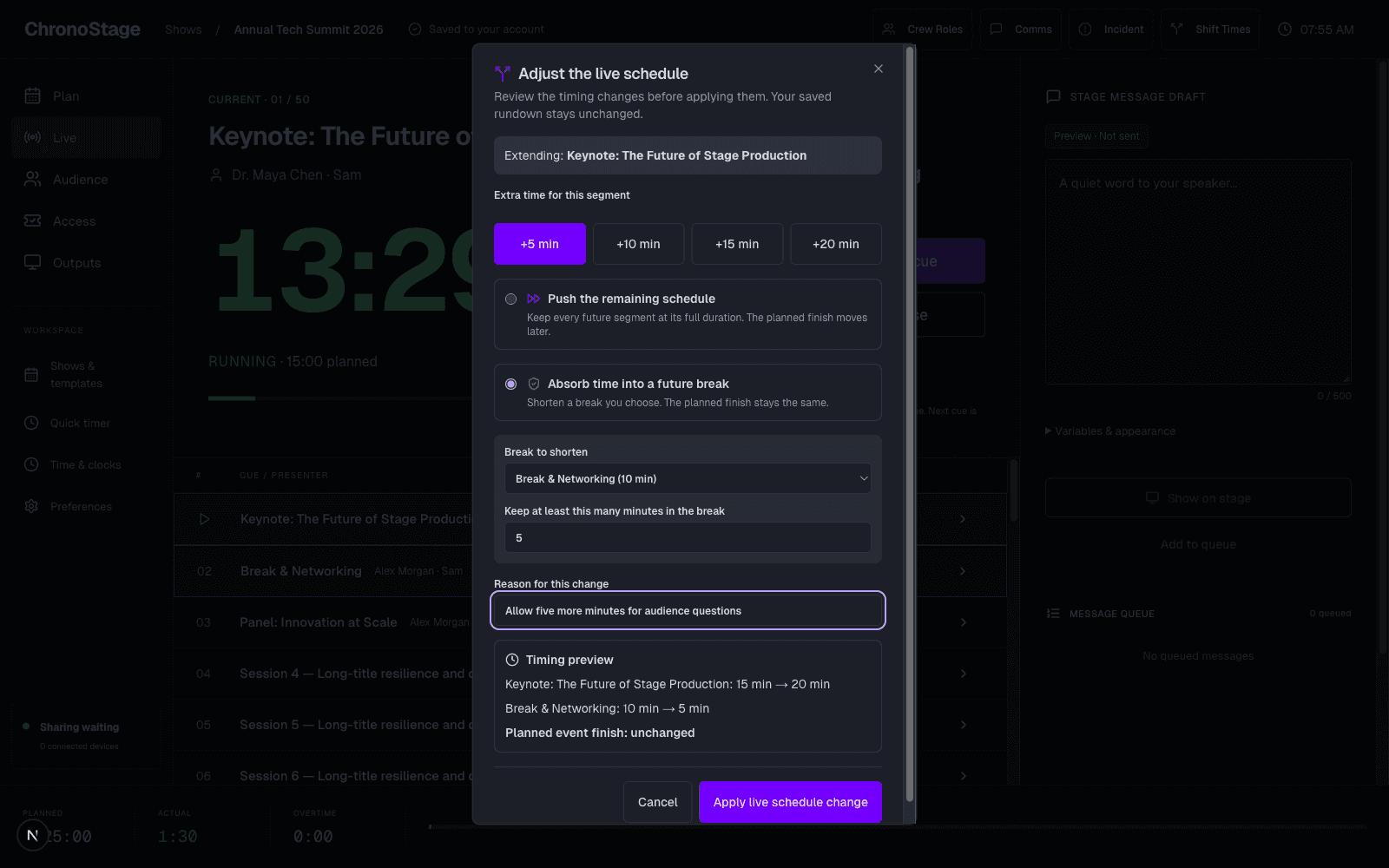
Choose what happens after a delay
An event rarely follows every planned minute. The schedule adjustment workflow makes the next decision explicit: push the remaining schedule later, or shorten an eligible upcoming break to absorb the extra time.
Push keeps the remaining segment durations. Absorb uses the selected break only when there is enough removable time. If the requested change cannot be applied, the event keeps its previous state and explains the problem.
Review, then apply
The preview and the resulting event state now use the same adjustment. If someone changes the event before you apply your preview, refresh the proposal instead of overwriting their work.
- Open your event’s Live view and choose Shift Times.
- Choose the time adjustment and review Push or Absorb.
- Check the affected segments, then apply the change.
Your normal controls stay close
Start, pause and run the event with the familiar manual controls. Next and Previous now act on the current segment, and quick stage alerts use the event’s validated message format.
Controls wait while an action is being saved and respect the event’s connection and access state. Your saved rundown and free timer workflows remain available. The schedule preview is there when a change affects what comes next.