Article in English
Print event badges with readable details
A print layout sized for the existing 90 × 55 mm badge keeps participant details separate from the admission QR code.
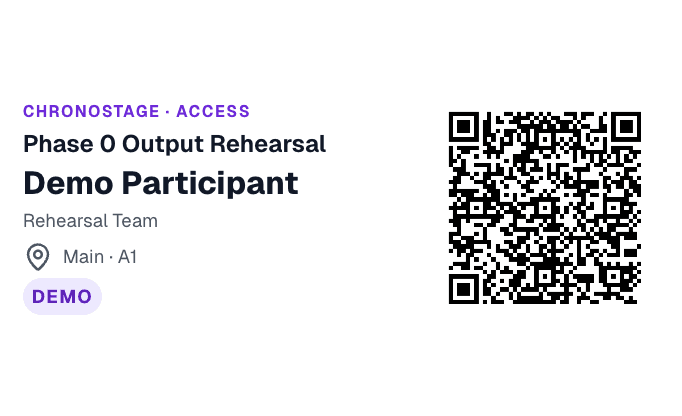
A layout made for badge paper
Screen-sized text and spacing could crop the area, seat or ticket type when a badge was printed at 90 × 55 mm. Printed badges now have spacing and text sizes suited to that format, with room reserved for the admission QR code.
The participant’s existing details and ticket code stay the same. This correction changes the printed layout; your digital credentials and check-in workflow remain available.
Review the badge before printing a batch
Open the participant in your event’s Access workspace and choose Print badge. Review the name, ticket type, area and seat in the print preview, then select the paper and scaling settings that match your badge stock.